Showing posts with label graphics. Show all posts

Tuesday, 28 February 2012

MOAR Skyrim Mods!

Well, after my last post I've spent a lot of time both searching out mods, and trolling the Bethesda mods forums - not to mention trying my hand at a little modding myself. 

I've found a few more mods, or slightly different versions of ones listed that I think are probably a little better. Either way, check these out too and if you like them, try them!

I haven't been able to play through this one, but this mod simply adds a whole new area and quest line to the Bard's College. It is pretty awesome, and if you want a little more unique Skyrim content, definitely get it.

This mod is great. It adds a school to Whiterun and Solitude (more coming), and 5 days a week, all the little brats go off to school so they aren't pestering about how they'll fight you, even if you are their elder...

"I'm sworn to carry your burdens..."
Not anymore! Now she's more than happy to exchange inventory.

I know what I said in my last post. I retract my statement. PISE is brilliant, and so is the mod's author, Pluto. This mod adds
-More spawns
-Harder enemies (deleveled dragons, mages use healing speels, enemies use healing potions...)
-Better AI (more blocking, power attacks, aim, and reaction times)
-Harder battles (easier to be detected, mages heal allies)
-Less leveled loot

I know it might sound daunting, but I swear it will make the game so much more fun to play. Combat is just much more fun and challenging, but balanced too. Pluto also has a beta version of a patcher that will smartly add spells to enemies if you're using mods like Midas Magic, another one that will create even more enemies for crazy dungeons, and he's the one who made Realistic Lighting that I listed last time.

This is another combat mod, and the one I've been using for a while now. I think it's better than the Duel one I listed last time. The most important features IMO are changes to how blocking and stagger works. Check this out.

Another combat mod, this one aims to be as realistic as possible. I have not used it yet, but it looks very promising. I suggest checking both these out and using one or the other in conjunction with PISE.

I listed this one last time, but it was only Dungeons. The Wilds is now released, huge immersion increase I think. Get it for sure!

This mod is a must for everybody. It fixes so many glaring issues with bad meshes, from fixing ugly wooden beams to making food look oh so much more delicious! Oh and not to mention the chains... I know, you're probably thinking, "what??" but seriously check it out. So much win.

These two mods go together very, very well. It makes rain in Skyrim seem like real rain! Combined with the thunder effects I listed last time, after this you'll be eagerly anticipating the next big thunderstorm in Skyrim!

Essentially this mod adds to the creatures of Skyrim. One of my favorite additions is scaled down, non threatening Skeevers as rats in cities.

Pretty basic mod, just fixes some issues with followers.

I'm now using this instead of the crafting mods I listed last time. It revamps the Smithing perk tree and adds a lot to the basic crafting. I use it in conjunction with Vals Crafting Metldown and the Weapons and Armor fixes I listed last time.

This one is a must have for most people. It will reduce your VRAM usage while maintaining the high quality of the official HD textures DLC. This is particularily important if you want to use other HD mods, like Flora Overhaul and HD Furniture and Barrels (my favorites), not to mention weapon and armor retextures. 1gb of VRAM isn't that much anymore.

If you really need to save VRAM, here's a mod that greatly reduces the texture sizes (mostly from increased compression) while maintaining much higher than vanilla graphics.

Well, that's it for today! Hopefully there's more fun stuff to write about in the near future.

Sunday, 12 February 2012

Top Skyrim Mods

I've spent a lot of time in Skyrim since it was released, and generally have been on top of the mods scene as well. I'm going to share with you all the mods I use, which affect graphics and gameplay. I always like to keep my game as "vanilla-ish" as possible, so this means no drastic ENB series injector mod to totally change the way the game looks, nor do I use huge mod packs like Titanis and PISE. I like to pick and choose what I install, and only things that flow with the game. Basically I go for "enhanced vanilla" instead of "check out this new game".

Note about screenshots - I took them with all of these mods installed, with the exception of Skyrim HD 2k.

Prerequisite


Before getting started, I highly recommend downloaded the Nexus Mod Manager, which makes installation of most mods extremely easy. Most downloads have at least the ability to be downloaded with NMM, and some have special installers for it that are even better.
Nexus Mod Manager

You can also find many mods on the Steam Workshop now, but personally if I find a mod on Nexus instead, I prefer to use that one. The Workshop just isn't quite as easy to use right now - there isn't even a search function.

Also, some of these mods require "SKSE". Follow the links from the mod itself. Essentially, you just have to copy the exe and dll files into your Skyrim folder, and then NMM will detect it and you select SKSE as your launcher from NMM. I believe some of the inventory mods require it.

Crafting


Complete Crafting Overhaul
This mod basically rebalances Black Smithing. It tweaks recipies a little bit, and gets rid of certain things, adds craftable arrows and even Skyforge items. However, this mod is meant to be used with the following for best results.

Smithing Perks Overhaul
Basically this mod just adds new recipies like Imperial, Stormcloak, Falmer, Silver, etc. These are all present in the game already, but many were not craftable. It also requires you to unlock access to certain recipies, for example once you are Thane of Whiterun you can craft the Whiterun Guard items. These two mods are also meant to be used with the next one.

Weapons and Armor Fixes
According to the download page, many weapons had inconsistencies which caused issues, like the Orcish Waraxe considered to be made of iron and a 2 hand sword considered a 1 hand sword which breaks your perks.

Vals Crafting Meltdown
Unfortunately, Complete Crafting Overhaul does not yet feature the ability to melt down items, so you're going to want this one. It is a planned update to CCO, but in the meantime Vals has you covered. Make sure to get the "no arrows" version if you use CCO.

JaySuS Swords
This is a really great mod. At this time, it adds an astonishing 47 new weapons to craft! For the most part they will have "standard" attributes so they are as balanced as anything. For example there might be 4 varieties of 2h swords but they all have the same stats, and are similar to a vanilla item. Unfortunately it doesn't seem that there is yet a good armour version of this mod.

Gameplay


Wars in Skyrim IV
I'm actually fairly new to this mod, but it can be summed up as a mod which adds a lot more combat opportunities to the game. Basically out in the wild there will be more spawn points for certain deadly creatures from bears and saber cats to huge trolls. It also adds more faction battles, random bandits walking around, and other fun stuff. It comes in different flavours too so you can add the "rainbow" version for a very slight change, up to the Dark Age which makes the game extremely difficult. This mod does change gameplay balance, though, so make sure you pick the difficulty that you prefer. This mod also features many sub-mods like better Werewolves and Vampires, Realistic Combat, NPC Perks. I personally don't use most of those, as I cover some of them with unique mods.

Duel - Combat Realism
This mod just tweaks combat in Skyrim, adjusting stagger, knockback, block, and other things. So far I find melee combat to be quite engaging so it must be working well for me. You can also try the combat addon from Wars in Skyrim, but I like that this one is very up front with all the tweaks.

Midas Magic
This is a complete magic life saver. The default magic in Skyrim was very lacking in variety, and this fixes it. Tons of new, unique spells are available for purchase. Personally, I thought vanilla magic, balance wise, was fine so I'm not going to incorporate any "magic fixing" mods. My level 46 destruction mage is a total boss even on Master, so yeah, I don't really have interest in boosting magic scaling and such. Midas Magic just adds spells.

Immersion and UI


Dynamic Merchants
From the description: "Merchants from all across Skyrim can now profit from the Dovahkiin's adventures. With this mod the amount of gold that a merchant has depends on how much you trade with them. Buy or sell expensive items and the merchant may have extra gold when you next visit.
Most shops will just recieve extra gold when they are profitable, but blacksmiths will sometimes receive extra ingots and alchemy stores can receive extra potions. Some merchants also receive rare items after their store has received high trade volume." Enough said.

This mod is amazing. Basically it makes categories on the top of the screen, and overall it's much improved from the vanilla menu system.

This UI mod takes over your inventory. It adds nice icons on top for sorting, plus lets you sort items by name, stolen, value, weight, and more. Just makes the inventory (and magic) screens much more friendly.

This is a great mod that makes you favorites menu appear full screen with categories. So much better than scrolling through a tiny window to find just the right item or potion. One note on this, you'll need to modify the config file depending on your resolution. See the mod description (follow link) for details.

This mod renames many, many items so that they sort better. For example, all arrows will go from "Iron Arow" and "Steel Arrow" to "Arrow - Iron" and "Arrow - Steel" this way they are grouped together when you sort your inventory. Applies to books, food, potions, soul gems, and more.

This simple mod just makes the map much clearer. It actually comes in a few varieties, including only main roads, all roads, with or without clouds, and even a nice "paper" style map option.

This is a really great mod, as it makes all the thunder sound effects much more authentic.

This is basically just a simple physics mod, which adds a nice sense of realism to objects and corpses.

This is a very simple mod, adding the sounds of seagulls near the ocean. This will be obsolete once the following mod is finished completely.

This mod will eventually enhance all ambient sounds within Skyrim. There are preview videos of it if you follow the link, and I'm sure you'll agree it sounds absolutely fantastic. Currently only part 1 of 3 is out, and that is the Dungeons pack.

As the name implies, it makes combat sounds much more realistic which adds to the immersion and realism.

Graphics

*Note: Skyrim just released the official HD texture pack. To me, this makes the game good looking enough that I don't necessarily feel the HD texture packs are required anymore for landscape and such. Not to mention my 1gb GPUs are already maxing out VRAM, and adding a whole bunch of texture mods besides these will just cause slow down. So if you're running 1.5 to 2gb graphics cards, I'll make special mention of a few mods near the end that will really add some eye candy. In the meantime, for people with 1gb cards of around 560 Ti or 6950 1gb performance or higher, these are some mods that will make the game nice without too much performance impact.

Well, lo and behold, Bethesda released a patch that had errors. The most significant one I noticed is that logs in the fire looked bizarre. This is a simple patch that fixes the errors left behind, and I'm sure next official patch we won't be needing this anymore. In the meantime, it's good to have.

By far this is one of my favorite mods. It doesn't use a post process injector of any sort, it simply makes the game look like vanilla, but better. It's especially great for dungeon crawling, as there is a lot more dark areas that makes things like torches actually useful. I love this one.

For whatever reason, many places - indoors in particular - have this strange effect where lighting causes extremely noticeable shadow stripes. This patch fixes them. Very useful.

As the title implies, this mod makes water look very realistic and gorgeous.

Again, fairly obvious mod. Makes smoke and embers look awesome.

Snow. It's everywhere in Skyrim. Might as well make it look really nice!

Night skies have never looked better. Very, very cool mod.

It does what it says.

This is such a simple mod, with no performance impact. It makes the very distant terrain textures look more realistic, basically adding a bit of grainy/bumpyness to them.

This one doesn't exactly make Skyrim a more beautiful place, but it does turn out to be extremely useful if you plan to do any black smithing. Definitely worth getting

This mod just makes all armour textures higher resolution and sharper. Really nice.

Whether you like this mod or not is up to you, but it makes the women of Skyrim much more attractive.

This mod enhances female and male textures, making them look much more life like.

Essentially it just smoothes out the mapping on faces. In particular, noses were bad. The Better Females mod has a version of this too, but I like to apply this one over top.

Makes the Argonians and Kajiit appear much more realistic. Especially the Kajiit, their fur looks very realistic now.

This mod is awesome, as it is a complete shield retexture mod, with all textures made from scratch. Looks fantastic.

A fairly obvious mod, this makes all NPC clothing looks significantly better. It keeps the vanilla look of all clothing, but makes them look way nice.

Another texture mod done by hand, this one improves the look of all weapons. Again, keeps that vanilla style but just makes them really fantastic.

This mod just improves the look of all windows in Skyrim. The HD pack released by Bethesda doubled the resolution, but this one quadruples it and gives you smooth or gritty options.

The Heavy VRAM Users


Like the title says, improves the look of most clutter and furniture. This one adds a few looks I'm not very fond of, though. I'd say use it at your own caution. If you intend to use all these HD mods, I'd recommend installing this one first so the textures are replaced by the following.

I really like this mod. Makes all furniture look awesome. Comes in a few flavours as well.

This one makes some huge improvements to the landscape textures. Looks phenomenal.

This mod makes many improvements across the board, from floors and carpets to walls and houses.

This is one of my favorite HD packs. Makes nature look just stunning.


Friday, 27 January 2012

3D Gaming, Nvidia 3D Vision 2 vs AMD HD3D

3D gaming is often touted as a gimmick, much like it is with movies. I don't know about you, but personally, I like 3D movies - when they are well done.

Nvidia has had 3D capabilites with their 3D Vision technology for some time now, but only recently released 3D Vision 2 with a few improvements. AMD on the other hand is fairly new to the 3D world, and their HD3D technology is actually only natively supported in 3 or 4 games right now including Dirt 3 and Deus Ex Human Revolution. For every other game, it actually needs to rely on third party drivers in the form of IZ3D and Tridef 3D.

Because Nvidia uses a more closed system for their 3D tech, they are able to keep tight control over how it all works and as such it seems to generally work better and in more games than HD3D. The downside, though, is that the 3D kits (3D Vision certified monitor and glasses) are quite expensive. AMD's more open 3D platform has the benefit in being able to use just about any 3D monitor and compatible glasses, many of which are from Samsung. They can be bought for fairly cheap too, as little as $350. The downside, of course, is that besides the few native HD3D games out there, how well it works relies on 3rd parties.

Now for the specifics, I'm going to have to direct you to a couple of articles. In TechReport.com's recent PC gaming in 3D stereo: 3D Vision 2 vs. HD3D, they cover everything from specifics about each 3D technology, supported hardware, and how to set it up as well as some benchmarks about the impact on performance. The only negative to this article is that they cover only a few games.

For another look at supported games and benchmarks, you'll want to check out Tomshardware.com's Stereo Shoot-Out: Nvidia's New 3D Vision 2 Vs. AMD's HD3D. This article covers many similar aspects to TechReport's, but has more games covered.

Tomshardware.com also posted an article that is a fantastic look at compatibility with 18 popular games, Nvidia 3D Vision Vs. AMD HD3D: 18 Games, Evaluated. The absolute coolest part about this is the images that let you see the 3D effect for yourself. Like this one:
Cross your eyes until there is a single central image, then wait for your eyes to focus on it.
It seems that generally the consensus is this: the technology still has a ways to go before it is really good, but, if you need it now then you'd be better off with Nvidia 3D Vision 2 and buying a very nice monitor with LightBoost.

Thursday, 26 January 2012

The Evolution of a PC Enthusiast's Addiction

I've had this gaming PC for 1 year and 9 months as of writing this post. My previous PC was a "prebuilt" from a local PC store. Not a Dell or a Gateway, but just a PC computer package with a Core 2 Duo (2.4ghz) and an 8600GT. One hot day I was playing DiRT in the living room, hooked up to my parent's big TV with my Logitech MOMO racing wheel and all of a sudden, the game got all glitchy and froze up. Rebooting gave me wierd visual artifacts even in the BIOS screen. Short of it was: burnt out GPU. I later opened it up and found a nice dust collection clogging the heat sink. Woops. Learned not to do that again.

In the meantime of not having a gaming PC for, oh, a year or two, I did plenty of other things. For my gaming fix, I had a Gamecube and eventually a Wii that I never played. I finally finished school and got a job, so I bought a PS3 Slim when those were released, and about 7 months later I put together a $1000 budget for a new gaming PC. I determined that I would build it myself. I researched parts, benchmarks, power, cooling, cases - everything. I sold my old PC to my parents for a small sum, and then picked up all the fancy new hardware for my awesome gaming rig.

I purchased the following on the 15th of April 2010:
CPU: Intel i5 750
Motherboard: MSI P55GD65
Cooler: Zalman CNPS10X Extreme
RAM: Patriot Viper II Sector 5 2x2gb
GPU: Sapphire Radeon 5850 (Dirt 2 edition/reference model)
HDD: Seagate 7200.12 RPM 500GB (x2 for RAID 0)
PSU: Corsair 750TX
Case: Antec 900 II
OS: Windows 7 64 bit
Monitor: Samsung 2494SW
Periphs: Logitech Easycall wireless keyboard and mouse (bad choice)
All in all this cost me $1599.83 (minus what I got for my old one)


I was, of course, completely thrilled with the power of this new PC. You better believe one of the first games I played was Crysis! I also started tweaking it, going into the BIOS and trying some CPU and GPU overclocking. Oh, and I lapped my CPU for better temps. This is where it all started.

Now, it isn't that I was reckless. I was keeping things within Intel specs. I wasn't letting temperatures run wild. However, only a month after my initial purchase, my PC blew up while trying to push maybe 4.1 or 4.2ghz. I had purchased the product replacement plans from the store, so I had to bring the computer in and after about a week they came back to me with the news: dead motherboard.

I suppose I was exceedingly lucky. They were able to POST a few times and saw the remenants of my overclock, so it was iffy whether I would get it replaced or not. However, they pulled through for me and not only gave me a replacement, but technically an upgrade to an Asus P7P55D Pro! I couldn't have been happier about that, and to this day am thoroughly pleased with the motherboard.

5850s, Bravura, GT240
Of course, I couldn't stop there. I was using a meager Altec Lansing 2.1 speaker setup that I used on my old PC. It was time to change that. I went out and bought the Logitech X-540 5.1 speaker system and, because I just had to, I also picked up an AuzenTech X-Fi Bravura 7.1 sound card... and then proceeded to plug both the 2.1 and 5.1 system into it for full on 7.2 surround! (note: I set the 2.1 up as "large" speakers for full sound, and the 5 speakers as satellite with a sub). This was 2 days after getting my PC back. Guess I was excited.

The next day I bought my second 5850.

2 weeks later I bought a GT 240 for PhysX.

Obviously at this point I was not just "into" PCs, I was full out addicted. And loving it! I was crushing games, tweaking everything, soaking it all up. By the way, I don't really recommend getting a dedicated PhysX GPU because so few games support it. Though, it only cost me $65 after rebate, so I'm happy.

What came next was aftermarket GPU coolers. The reference coolers were either quiet and mediocre, or loud and effective. The problem with buying aftermarket coolers, though, is that they are almost all 2 slots big, meaning the cards would occupy 3 slots each. As you can see, I was tight on space.

In the end there was 2 options for me: Zalman VF3000 or Scythe Setsugen coolers. And only the Scythe's were in stock. Honestly, though, I still use them and they are fantastic. I have made sure to have good air flow over them, and at 1300rpm they are whisper quiet and my GPUs don't even hit 70C with the overclock (stock volts, up from 700/1000 to 870/1200). Installing them was a bit of a pain, though. In particular the VRM and VRAM heat sinks that stick on. While gaming one fell off and broke the fan blades on the cooler! Fortunately, once again, it was a quick swap for a new one thanks to the replacement plan at the store. I also picked up some Thermal Adhesive to keep those suckers in place.

There was another issue, though. The stock VRM heat sink was extremely tiny and inadequete. It was basically 4mm wide, and extended only just long enough to cover the VRMs. The VRM temps were shooting up far higher and faster than the core or VRAM temps so I had to do something. I ended up using the spare parts to fabricate my own VRM heatsink - a copper base plate meant for the GPU core plus an extra heat sink. Works like a charm.

So now I've probably tripled my budget after only 4 months, but at the same time, thoroughly enjoying it. Naturally I had to find another something to buy. That something was a complimentary 2x2gb RAM kit to bring me up to 8gb. There was a small issue, though. The Zalman CPU cooler I had was so big that it covered the first RAM slot. This meant I had to get creative, so I flipped all my case fans around to blow back-to-front. I couldn't flip the top 200mm exhaust, though. But it worked, everything fit, and my temps only went up a little bit. I also was feeling an OCD itch about how wrong it is to have it backwards...

Now, at this point I was living in an appartment with my girlfriend, and my sound system was becoming an issue. Both because she didn't want to hear loud explosions when I gamed, and my neighbour below us didn't either. This led to me investigating headphones. I didn't want to spend much, so I tried out the SteelSeries 5H V2s... and they sucked. A lot. The sound has no bass and amplified treble, and I couldn't stand it. I decided I had to step up, and got Sennheiser PC 350s which are fan-freaking-tastic! I also swung a great deal, and got them for $150 because another retailer online had them on sale and my trusty local store price matched.

At this point, I was very happy with my system and managed to go a whole 9 days before buying another part. I was probably premature in jumping into this, but I picked up an Intel X25-M 80gb SSD for $215. Money not very well spent, to be honest. It's not that I dislike the SSD - I love it! But the problem is simply that my performance was great anyway and SSD prices were dropping. Regardless, at the time I was super happy with it and to this day I think an SSD is vital to any high end build.

Now I was running an i5 750 at 4ghz, a pair of 5850s overclocked to almost 5870 performance, an SSD, a sound card, a PhysX card, 8gb of RAM... everything was good. I was happy with the performance and the looks. Everything. Everything except the backwards cooling solution.

I'll save the rest for my next post.

Wednesday, 18 January 2012

Graphics Card Overclocking

Overclocking a graphics card is a great way to unlock higher framerates. In many cases, you are able to increase the performance of a GPU to that of the next better model. For example, AMD 6950 uses, basically, the same hardware as the 6970, just with a couple parts on the GPU core disabled and it's at lower clocks. Well, if the hardware is the same then it should be able to hit the same clocks as the 6970, right? In many cases, this is true. For example, the AMD 5870 has a stock clock of 850 mhz, while I'm able to get my 5850s to 870 mhz on stock voltage. Looking at the hard data, a 5870 has a 68 Gigatexels/second fill rate and a 153.6 GB/sec memory bandwidth. My 5850s are at 62.6 Gigatexels/sec and 153.6 GB/s (from GPUZ). At the same time, brand new, my cards were $150 cheaper. Pretty good argument for overclocking, no?

A word of warning: As much as overclocking is supported, it is not officially supported. This means that should you damage your card and send it in for a replacement, and the support tech staff is able to determine that you overclocked your card, then your warranty is void. OCing through software makes it very difficult for them to determine this, whereas a flashed BIOS makes it extremely easy.

Ok, so, regardless of why you want to overclock, let's get into the basics of it.

Key Terms


Core means the actual GPU core, where most of the magic happens. The speed, in mhz, that your GPU core is running at is going to greatly affect the texture and pixel fillrate performance, which is a huge bottleneck in gaming.

I'm not paid for complete testing ;)
Memory (VRAM) is where textures are stored as well as rendered frames. There are plenty of performance benefits to having a higher memory speed, considering that pretty much everything you see on screen is at one time in the memory.

I ran some tests on FurMark, at 1920x1080, showing how both core speed and memory speed can affect performance. As you can see in the graph, the framerate went up as the memory speed increased, with barely any change from core speed. It is important to note that this particular test was run using 4xMSAA. I also did some tests at 0xMSAA in FurMark, and it showed that only core speed had an improvement. Basically I just want to point out that for optimal overclocking, you need to focus on both memory and core speeds.

Voltage is what gives you stability. As the core speed increases, it may need an increase in voltage to remain stable, much like in CPU overclocking. Most higher end GPUs allow voltage modification, however, not all GPUs allow this. In some cases you might be able to also modify the VRAM voltage, but this is fairly uncommon. If you can, then in much the same way as core voltage, it can help you achieve higher clocks.

VRM is the Voltage Regulator Module. This is what adjusts your input voltage to that going into your GPU. These are very prone to over heating when overclocking, especially if you increase your voltage. 

How To Overclock

MSI Afterburner
The first things you'll need is a program to adjust GPU clocks. AMD offers Overdrive in the Catalyst Control Center, and many manufacturers offer their own tweaking programs, like Sapphire Trixx, MSI Afterburner, and EVGA Precision. Personally, I use Afterburner - with my Sapphire cards. It is probably the best all around program, and the only reason not to use it is if you have non-reference, non-MSI cards and want to adjust the voltage.

GPU-Z Sensors
You will also want to download something to monitor your cards. Afterburner takes care of this, but you should also consider getting GPU-Z because it monitors more than just the core temperature. In most cases, you will also be able to see your VRAM and VRM temperatures as well. Ideally your temps won't surpass 80-90C at the absolute most. For my 5850s, I found I would get a hard system crash or lockup when VRM or VRAM hit around 120C, although my core temperature was still in an acceptable area - so keep in mind that you should check on those temps too.

Before you start, make sure that you do NOT have "apply overclock at startup" selected!

The basics of GPU overclocking are very similar to CPU overclocking. Personally, I recommend starting with Memory clock because it gives nice gains and often isn't affected by voltage - since usually you can only change core voltage. To overclock the memory, I like to start with 50mhz jumps, with 5 minutes of FurMark testing at 4xMSAA at full screen - also, let the cards stay heated up a fair bit rather than giving them a long cool down time between tests. You may want to set up your tests using the benchmark feature. Continue this until you get either a lock up, crash, artifacts, or the screen goes blank. Doing a hard reset on your PC isn't fun, but it shouldn't wreck anything. I usually find that ctrl+alt+del still works and you can reset from there.

FurMark stress test
When running your 5 minute benchmark tests, you will get a score at the end. As you increase the memory speed, you should see an improvement to the score. However, at some point even if you don't get a crash or lockup, you might notice your score either didn't increase, or worse yet, decreased. This is a vital thing to notice. The reason for this, as I understand it, is that GDDR5 memory - that is, the most common memory used for GPUs - is meant to be crash resistant. It does this by being able to resend data that failed the first time due to being unstable. In this way, if you are nearing the point of crashing, leading up to it the VRAM will need to resend data repeatedly, and therefore it will reduce performance compared to every piece of data being sent only once. Therefore, if you notice this occuring, slowly reduce your clocks by 5mhz until you realize the highest score.

Moving on to GPU core overclocking, the process is much the same. You can still start with 50 mhz jumps, but with the testing you should run at 0xMSAA in FurMark. Also try to keep temperatures high throughout the testing phase.

The most common issue of an unstable core is artifacting. This is when pixels essentially get stuck, and you'll notice multiple squares on screen that don't sync up with the image. At this point you will want to stop the test and will also have to reboot the PC. You have a choice here, either to reduce the clock or else increase the voltage. For 24/7 overclocks, I highly recommend reducing the clock and finding the highest stable clock on stock voltage. However, if you want to increase the voltage, I suggest doing it in 0.05V increments. Basically just increase the voltage and retest at the same clocks, and repeat until stable. It is also vitally important to watch all your temperatures, because as I mentioned before, it's possible that you crash because of heat and not instability.

Extra Info

There are, as always, a few other things to consider. FurMark isn't perfect in determining if your GPU is stable. I've passed fairly long sessions in FurMark, as well as a few games, before finally having an issue in one specific game. It didn't take long to realize that my GPU OC was to blame, and dropping my memory clock by only 5mhz made it nice and stable from there on out. So, actually playing games will be your final stress test.

If you run crossfire or SLI, there might be issues with instability. Generally it should be ok, but I've read about issues with crossfire that has to do with the switch between low power and high power, and only occurs when a custom voltage is set. It seems the way around this is to disable ULPS, which you can google for yourself.

Another area of problem is that sometimes after an overclock is applied, the graphics cards won't automatically change to low power state at idle, or else the idle state clocks are higher than they used to be. This is something that is at the mercy of people making the overclock programs, and the only way around this (and other) issues is to manually reflash your GPU BIOS. This is not a recommended practice, but I will just put here that if you have a very stable overclock, it is a handy thing to do because your GPU will essentially think that the overclock settings are it's default settings, so it behaves like a totally stock card. There are tools for changing and flashing the BIOS, and for more info check out techpowerup.com.

If you have concerns about your particular brand or model of graphics card, just google your card and key terms like "overclocking" "highest clocks" "stability" to find a variety of sources. I always advise learning as much as you can before doing something you don't quite understand, and causing damage.

Sunday, 15 January 2012

What's in the Works

I'm in the middle of writing a guide on GPU overclocking. I figured it would be pretty quick and easy, but I want to add a few extra things to it, and that's going to take some time. I should have it out in the next few days.

In other news, I had a fairly busy weekend and didn't get the time to run more test on PCIe overclocking. I might just post what I already did a while back, and maybe make an update to it in the future with more testing results.

I've also just started Batman Arkham City, so I'll probably write a review on that in the next week or two. I've also gone back to my one-time favorite racing game, Race Driver: GRID, and I feel like after my NFS: The Run review, I might have to do a retro review on GRID because it really is one of the best racing experiences out there.

Also, in the more distant future, looking at making some guides on how to build a PC - from picking parts to physically building it. This one will take a while but it's something I've had up my sleeve for a while. I made slides for it, thinking about putting it on YouTube, but decided against it as it was just very dry material. I think a blog post is significantly more appropriate for it.

Stay tuned for lots of (hopefully) great posts!

Tuesday, 10 January 2012

How to Update Drivers and Install New GPUs

I notice that a lot of people on forums complain about bad performance after upgrading to Crossfire or SLI, and usually the fix is pretty simple. This also applies if you've bought a brand new graphics card or just want to get the next driver update.

Prerequisite:
-You need to have a motherboard that supports CF or SLI if you are going that route. For a new GPU upgrade, it won't matter as long as it has PCIe 2.0.
-You need a power supply that can handle the increased power draw from the new GPU. There will be a recommended amount via the manufacturer website.

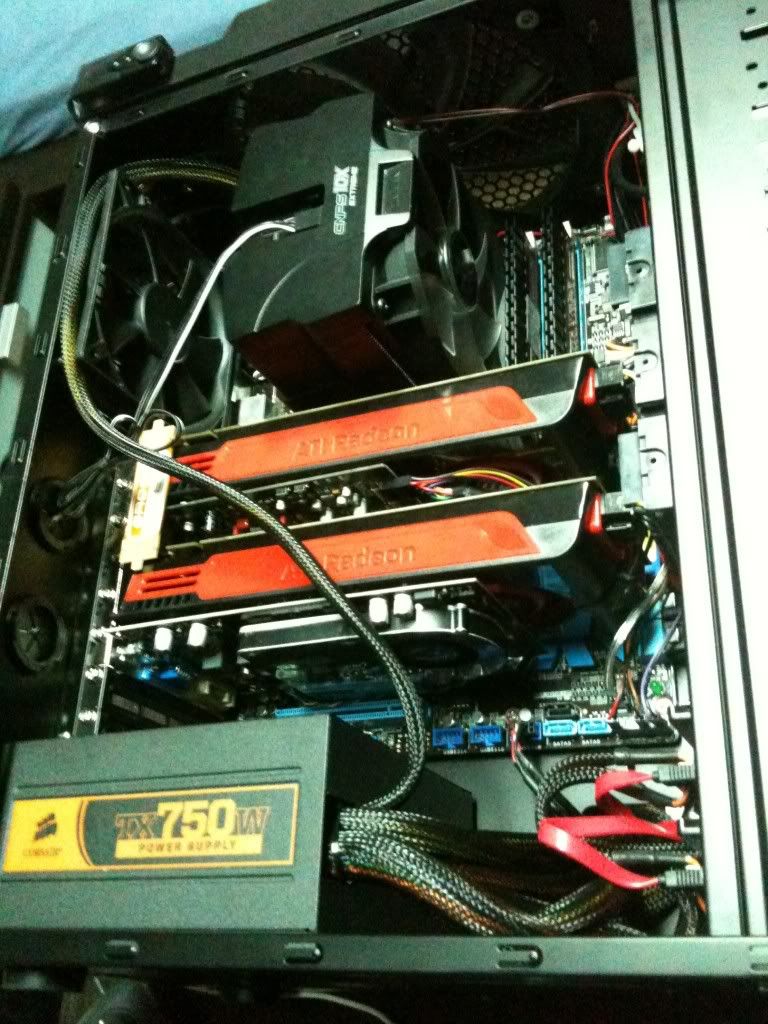
Crossfire 5850s, and a GT 240 for PhysX
So you get your new GPU home, what do you do?

Step 1
Download the latest drivers from Nvidia or AMD, depending on the GPUs you have.
Note for CF users: you must download the Crossfire Application Profile (CAP) separately from the main driver, at least for now. Nvidia drivers have it included.

Step 2 *Optional but recommended
Download Driver Fusion

Step 3
Uninstall your current drivers, and before rebooting run Driver Sweeper to totally clean out your drivers. Note that you only want to remove your "Display" drivers for AMD/Nvidia.

Step 4
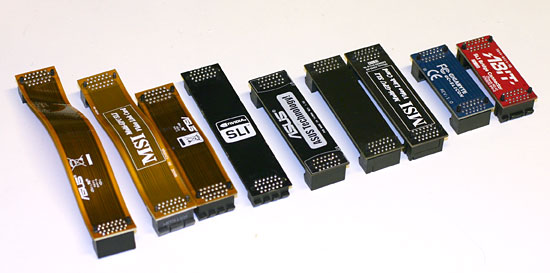
Turn off your PC, unplug or switch off the power supply, open the pc up, and plug in your new GPU. Make sure you connect the right PCIe 6 or 8 pin power connectors from your power supply. Also attach the CF or SLI bridge - this usually comes with the GPU and attaches near the L Bracket of the GPUs.

Step 5
Turn the PC back on. The resolution should be way off, like 600x800. Get into Windows and find that new driver you downloaded. Install it. For AMD Crossfire, install the CAP as well. Then, reboot.

Step 6
Verify that CF/SLI is working. Just go into the Catalyst Control Center/Nvidia Control Panel and check for the CF or SLI option, and make sure it is enabled.

Then go play games!

A note about installing drivers:
-You should always uninstall your old drivers before updating to new ones. I have occasionally had an issue when trying to simply install over top of old drivers that is always fixed by completely deleting the old one.
-For AMD users, you want to avoid installing the HydraVision at all costs. You also won't need the SDK install if that is available. I always advise you do a "custom" installation just to verify you are only installing what you need.
-Both AMD and Nvidia drivers come with audio drivers. Unless you are using the HDMI output with audio, you do not need this and I highly advise not installing it.